Adjust video layout during a meeting
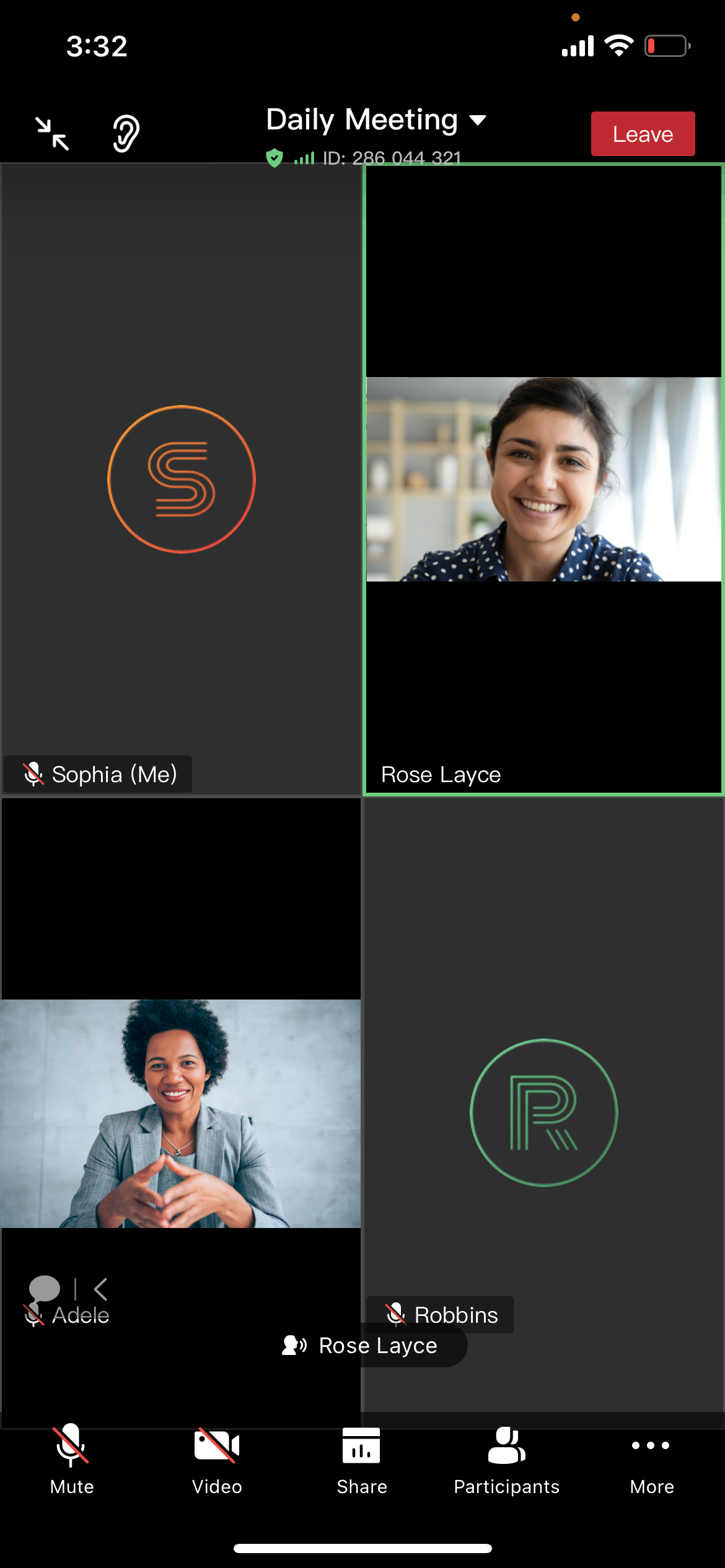
In a meeting, every participant can adjust their video layout to focus on someone, or to show more participants in the meeting by their choice. Matrx provides three types of layout: the gallery view, the presenter view, the pip view. When you are sharing, you can adjust the side video layout. There are three types of side video layout as well: Show Speaker Only, Float Large-pane View, Float Multi-pane View.
Video Layout Introduction
Gallery View
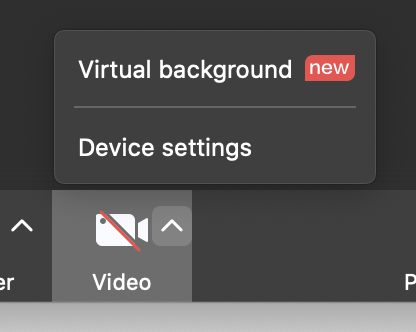
In gallery view mode, the participants can see multiple participants in the meeting in grid panes on one screen. The screen page can be scrolled to the next page to see more participants.
The desktop clients can support up to 25 panes in one screen, while the mobile clients support up to 4 panes in one screen. The Android pads with 2GHz and 4GB RAM can support 9 panes in one screen, while other Android pads can only support 4 panes. The Android pads with Kirin 990, Kirin 9000, and Kirin 9000E chipset, can support 16 panes. For most of the iPads, Matrx can support 4 panes. For some special iPads, Matrx can support 9 or 16 panes in one screen.
Presenter View
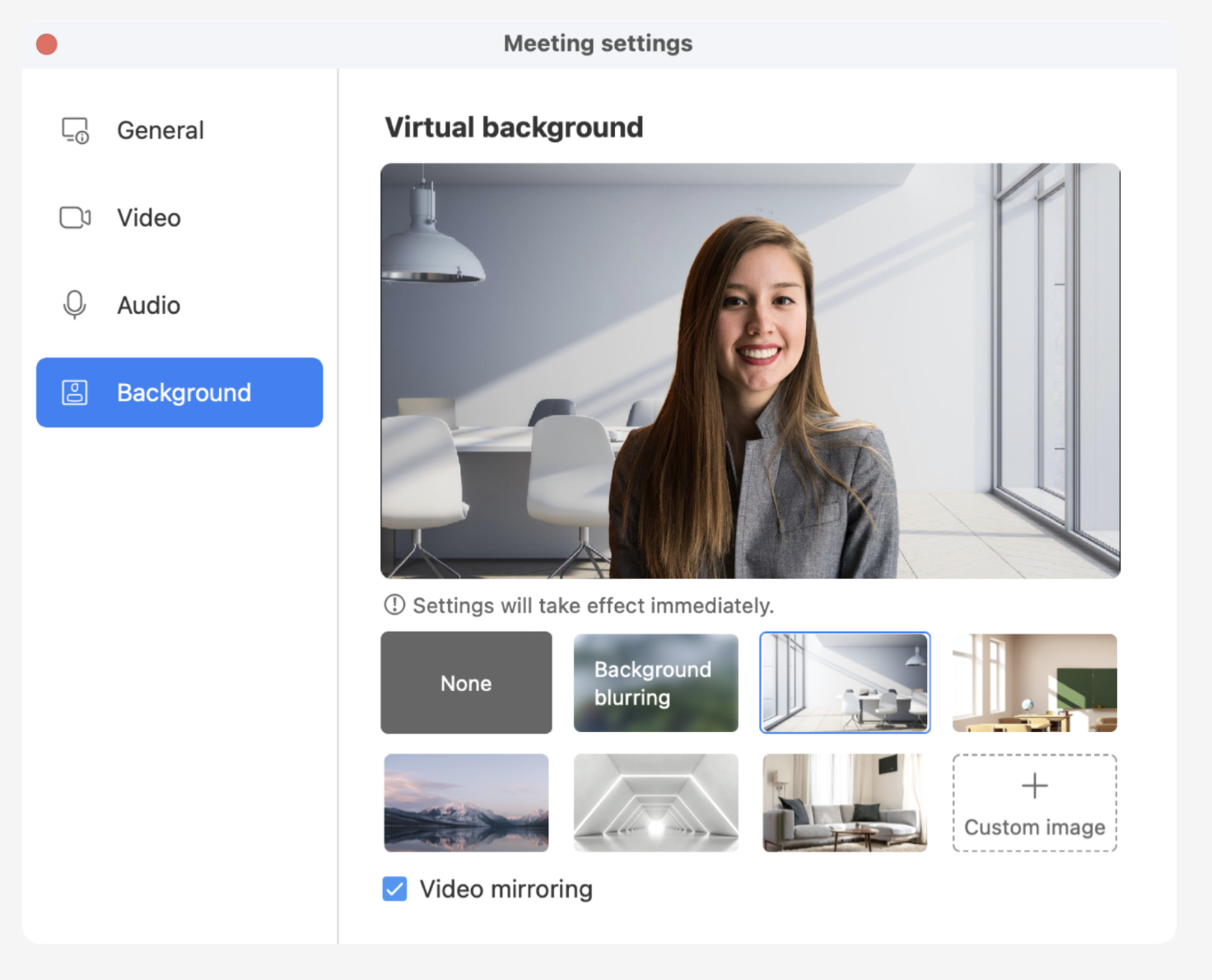
In presenter view mode, the presenter who is sharing his/her screen will be shown in the large pane downside. Or when no one is sharing, then the large pane downside will show the participant who is talking right now. Other participants will be shown in the small top panes.
PiP View
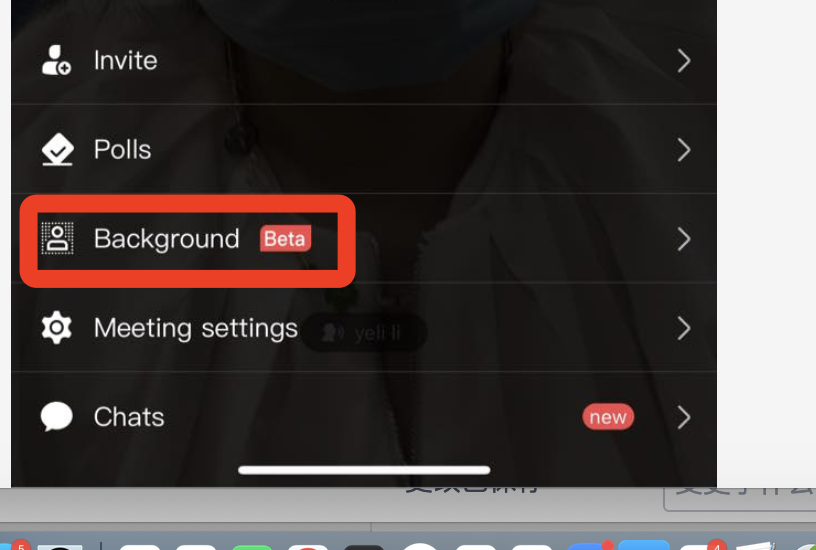
In PiP view mode, if no one is sharing in the meeting, then the large pane shows the participant who is talking, while the small pane at the down right corner shows the participant's own view.
If someone is sharing in the meeting, then the large pane shows the shared content, and the small pane at the down right corner shows the participant who is talking right now.
Windows and macOS
Switch Layout
In the meeting, at the upper right corner, participants can click the Layout button to switch from Gallery view to Presenter view or to PiP view by their choice. Besides, they can click the Full-Screen button to switch to full-screen mode, or back to window mode.
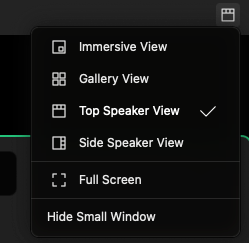
When the participant is sharing, he/she can see the participants in the meeting at the right of the screen and choose to switch layout from Show Speaker Only, to Float Large-pane View or Float Multi-pane View.
In Show Speaker Only mode, there will be only one participant who is talking.
In Float Large-pane mode, there will be only one participant who is talking in a larger pane.
In Float Multi-pane mode, there will be several participants in the panes.
iOS, Android, iPad, Android Pad
By default, the first page of Matrx Meeting displays the speaker in the large pane and the participant himself/herself in the small pane at the lower right corner.
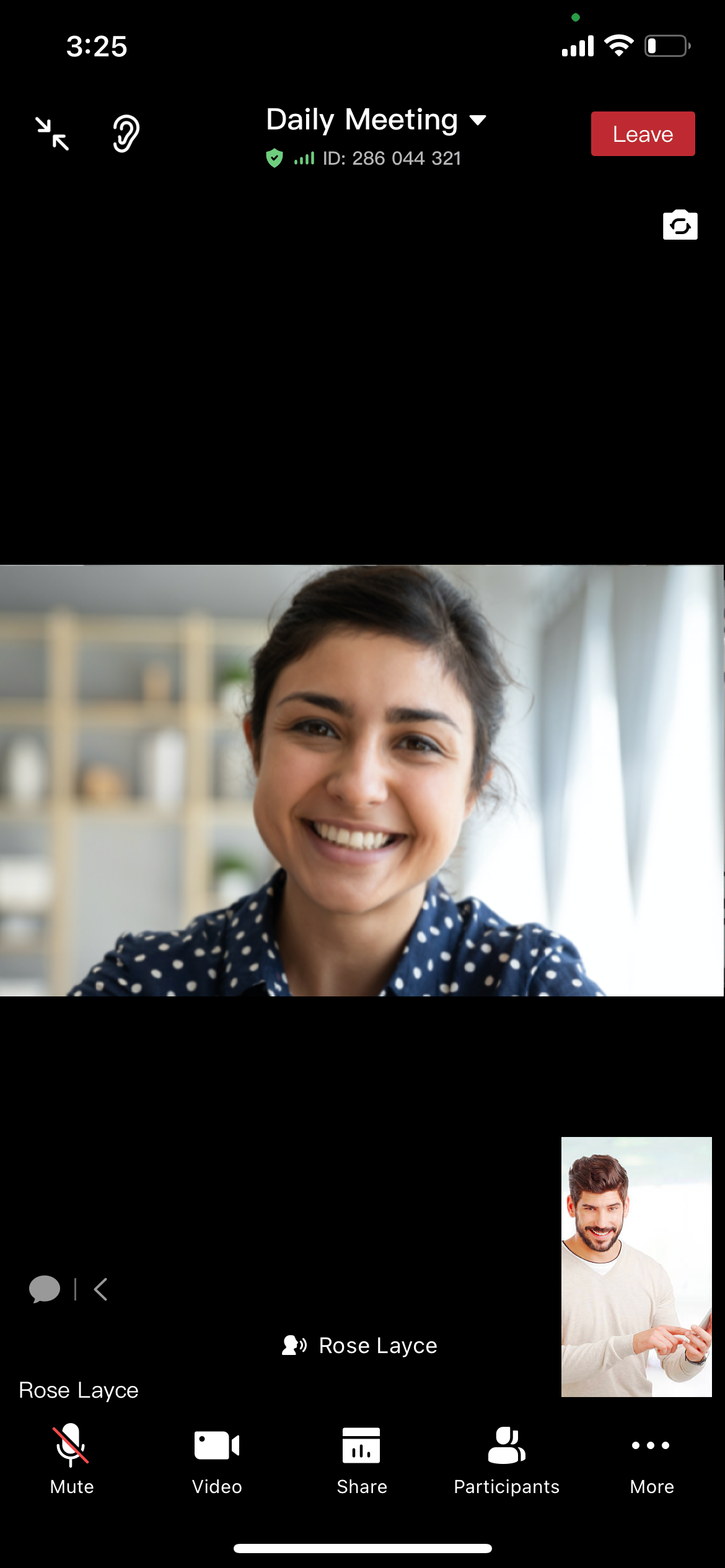
Participants can swipe left to see more participants in the gallery view.